Track two (or more) businesses in one app
How-to · receipts split by business, separate reports“I have two companies, and I'd like to know if it's possible to choose which company each receipt belongs to, and then choose the category. At the end of the month, I'd like to generate separate reports for each company. Would that be possible?”
Yes — it's built right in. Snapstub has Businesses: each receipt belongs to one business, you switch between them from the top of the screen, and export is scoped per business — so each one gets its own clean report. Categories work exactly as usual on top, and labels are still there for tagging across businesses (a client, a project, “reimbursable”). Here's the whole flow.
Step 1 — Add a business, then put each receipt in one
Tap the business name at the top of the list (it starts on All businesses) to open the switcher, then Add a business — say Acme and Side Gig (your real names). To file a receipt, open it and set the Business row. New scans automatically join the business you're currently viewing, so once you're in Acme, everything you scan lands there. Anything you don't assign stays in Personal. Categories (Meals, Travel, Office…) work the same way on top.
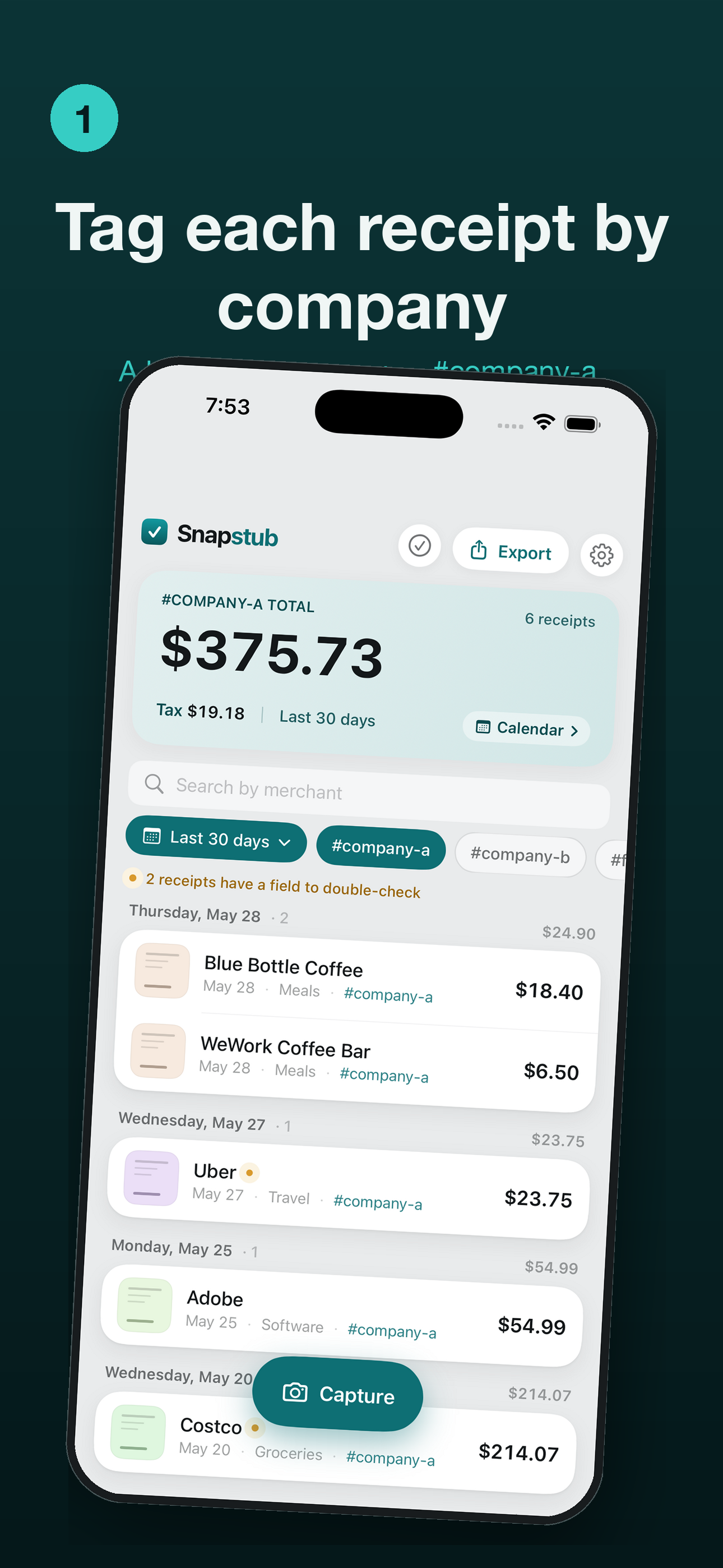
Step 2 — Switch to one business
Tap the business name at the top and pick a business. The list — and the running total, and the calendar — instantly narrow to just that business's receipts. Switch back to All businesses anytime to see everything together.
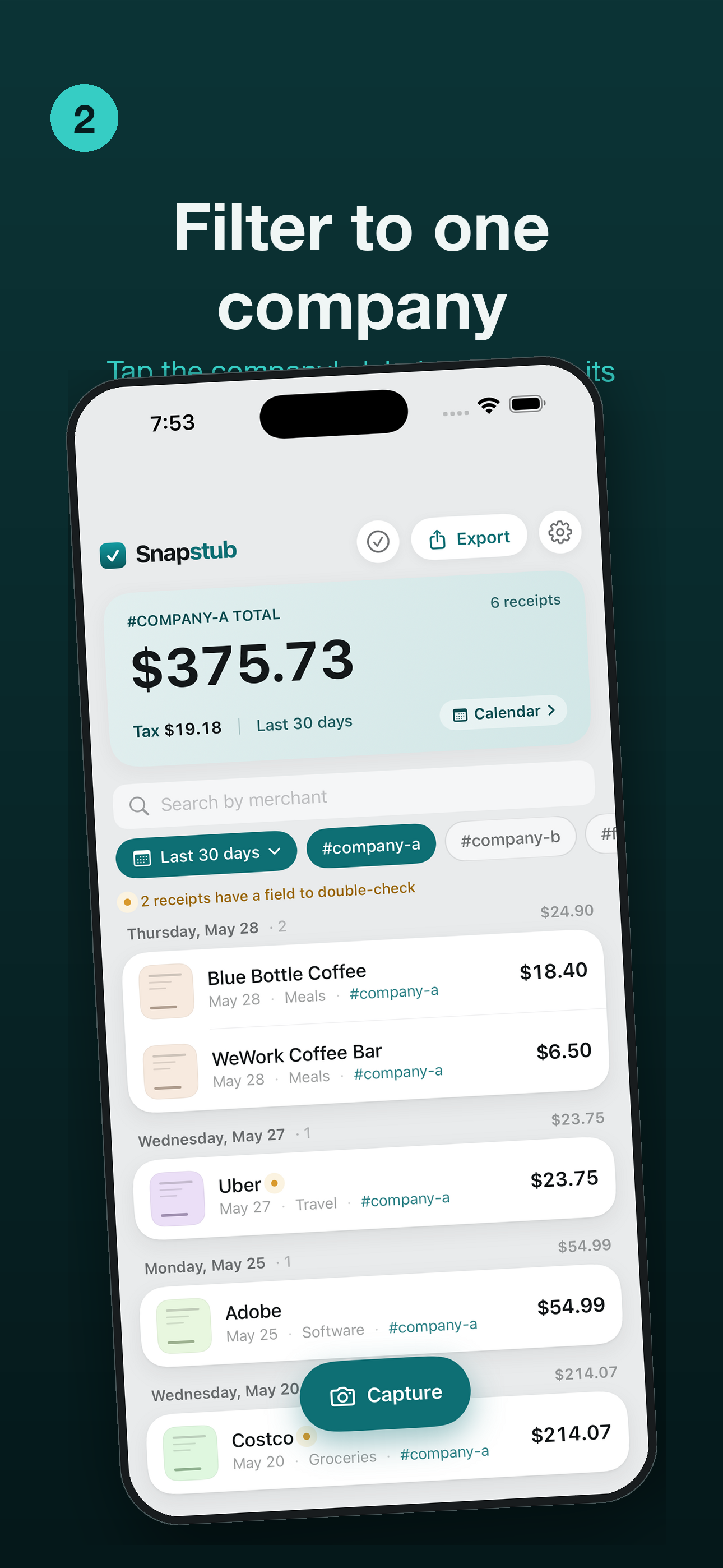
Step 3 — Export that business's report
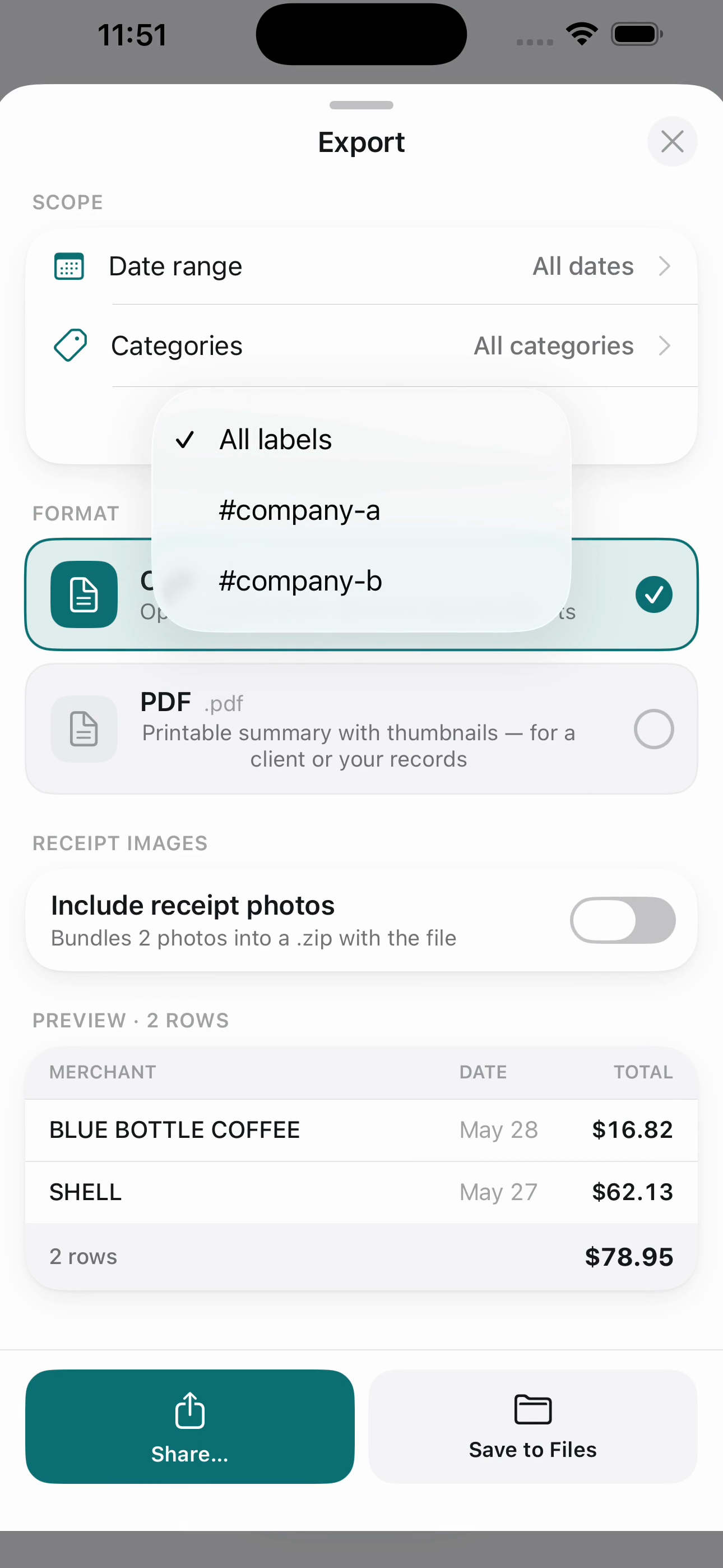
Tap Export. In the scope, set Business to the one you want and Date range to the month, then choose PDF — that's your monthly expense report, and its header shows the business and period (e.g. Acme · May 2026). Switch the business and export again for the other report. (Prefer a spreadsheet? Pick CSV instead — it opens in Numbers, Excel, or Google Sheets.)
Your report
The PDF is a clean one-page expense report — its header shows the business and period (Acme · May 2026), then every receipt with its date, category, and total, and the grand total and tax at the bottom. One report per business, ready to email or file.

When a business wraps up
From the switcher, the ⋯ next to a business lets you Rename it, Archive it (hides it and its receipts from view but keeps everything — bring it back anytime from Settings → Archived businesses), or Delete it (move its receipts to Personal, or delete them too — recoverable in Recently Deleted). Personal is always there as the home for anything unassigned.
In short
- Businesses → the switcher at the top (one per receipt; scopes the list, calendar, and export)
- Category → the usual category on each receipt
- Labels → free-form tags within a business (a client, a project, “reimbursable”)
- Monthly report per business → Export → Business + month → PDF
Everything stays on your device — no account, no cloud. Questions? support@suprun.ca.